 ScreenDock
Use an Android tablet as a wireless second screen for your Mac
macOS can send its display to any AirPlay receiver, either as a copy of your screen or as an extra display you drag windows onto. With ScreenDock on an Android tablet, the tablet becomes that receiver. Nothing to install on the Mac, and no cable.
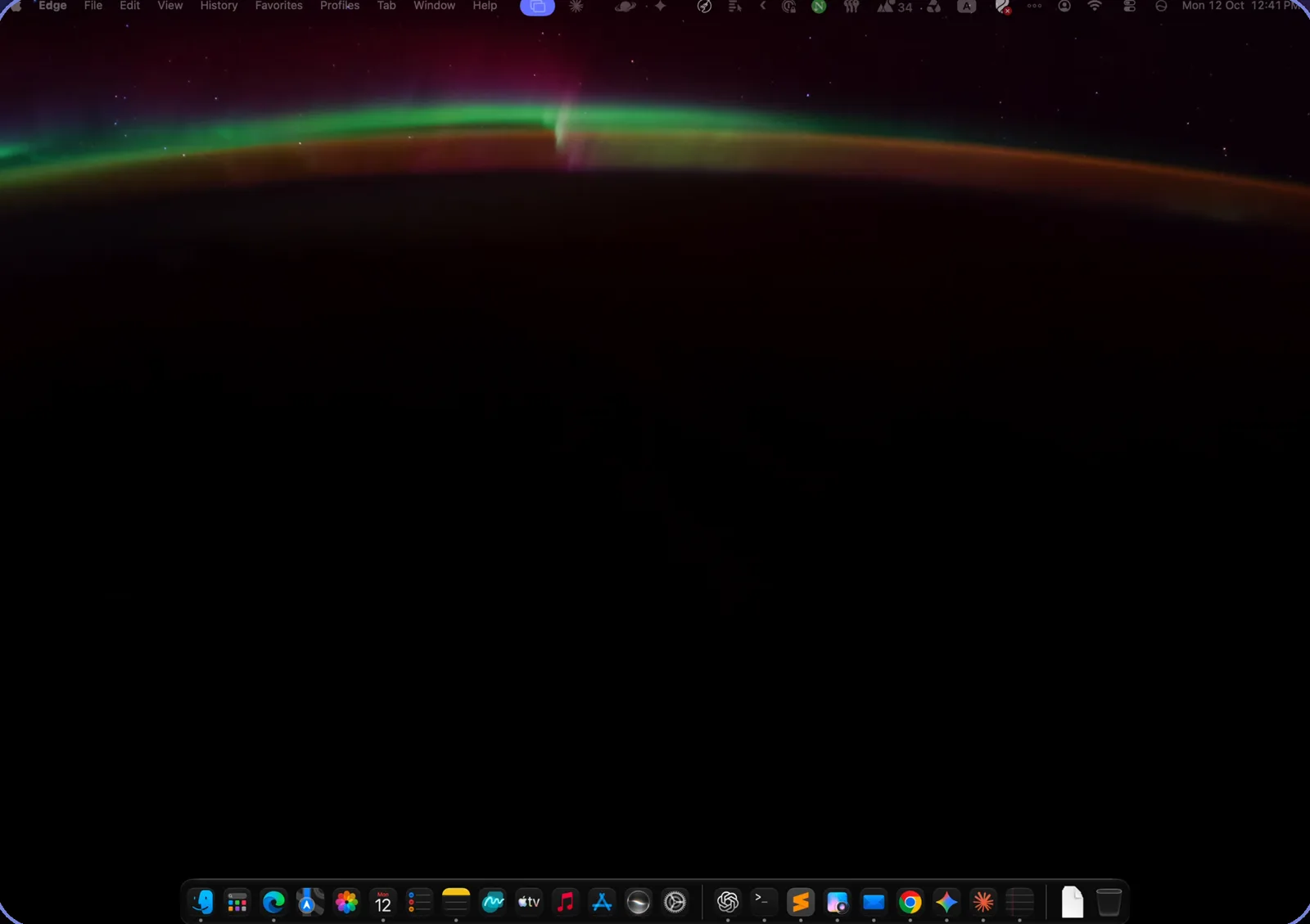
Extend or mirror: both work
- Extended display
- The tablet becomes a separate screen next to your Mac's. Drag a chat window, notes, music or a reference document onto it and keep your main screen for work.
- Mirror
- The tablet shows exactly what's on your Mac. Useful for presenting, demoing something across the table, or watching on a bigger tablet screen.
Set it up
- Install and open ScreenDock on the tablet. Keep it on the same Wi-Fi network as your Mac.
- On the Mac, click Control Center in the menu bar, then Screen Mirroring, and pick the tablet.
- Choose how to use it. In the Screen Mirroring menu, choose to mirror your display or use the tablet as a separate display.
- Arrange the screens. For an extended display, open System Settings → Displays and drag the tablet to the side of your Mac where it sits on your desk.
What to expect
- Sharp picture. ScreenDock asks the Mac for the tablet's native resolution, up to 4K, at up to 60 fps, in H.264 or H.265.
- Use your Mac's mouse and keyboard. The tablet shows the picture; touching it doesn't control the Mac. Move the pointer onto the tablet the same way you would onto any second monitor.
- Low delay, not zero. On good 5 GHz or Wi-Fi 6 it's comfortable for documents, chat, video and presentations. Fast games and precise drawing will feel the wireless delay.
- Sound. When mirroring, the Mac's sound can play on the tablet too.
- Keep it charged. Decoding a high-resolution stream uses battery, so plug the tablet in for long sessions.
Tips for the best result
- Put the Mac and tablet on the same 5 GHz network, close to the router.
- In Android's battery settings, don't optimize ScreenDock, so Android doesn't stop it in the background.
- If text looks too small on the tablet, change its scaling in System Settings → Displays on the Mac.
How long can I use it?
The free version runs mirroring and extended display in 10-minute sessions with a 30-minute break. ScreenDock Pro removes the limit with one $9.99 purchase. No subscription.
The tablet isn't in the Screen Mirroring menu
Usually a network setting. See not showing in Screen Mirroring.
Related guides
Updated